

NeetoPlanner offers two ways to visualize and manage tasks within projects: List view and Board view. Accessible from the menu bar, these views provide distinct layouts to suit different project management styles.
Board view
Board view presents tasks as cards organized into columns, similar to a Kanban board. Each column represents a category such as task status or priority, and tasks can be easily moved between columns by drag-and-drop to update their status or category visually. This view is especially useful for tracking progress across workflow stages at a glance.
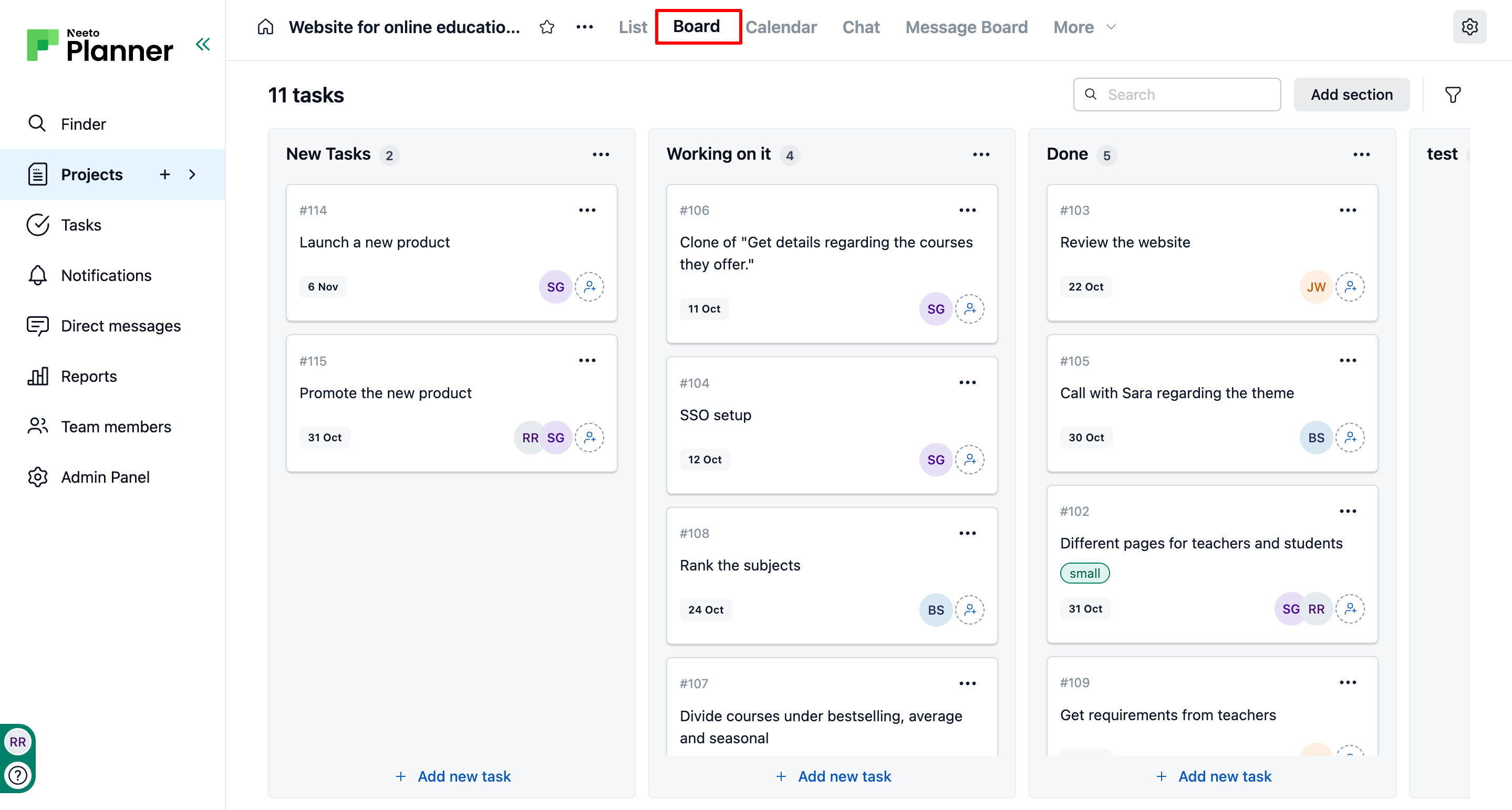
Image previews
Board view can show the first image attached to each task at the top of its card, so you can see what a task contains without opening it. Image previews are off by default.
Click Card at the top right of the task list to open Board view.
Click the Card settings icon next to it.
Select Show image previews.
The setting is saved for that task list, so everyone in the project sees the previews when they open the list in Board view.
Only images attached to the task show as previews. Videos, other files, and images added inside the description text or in comments don't show as previews. Clicking a preview opens the task, the same as clicking anywhere else on the card.
List view
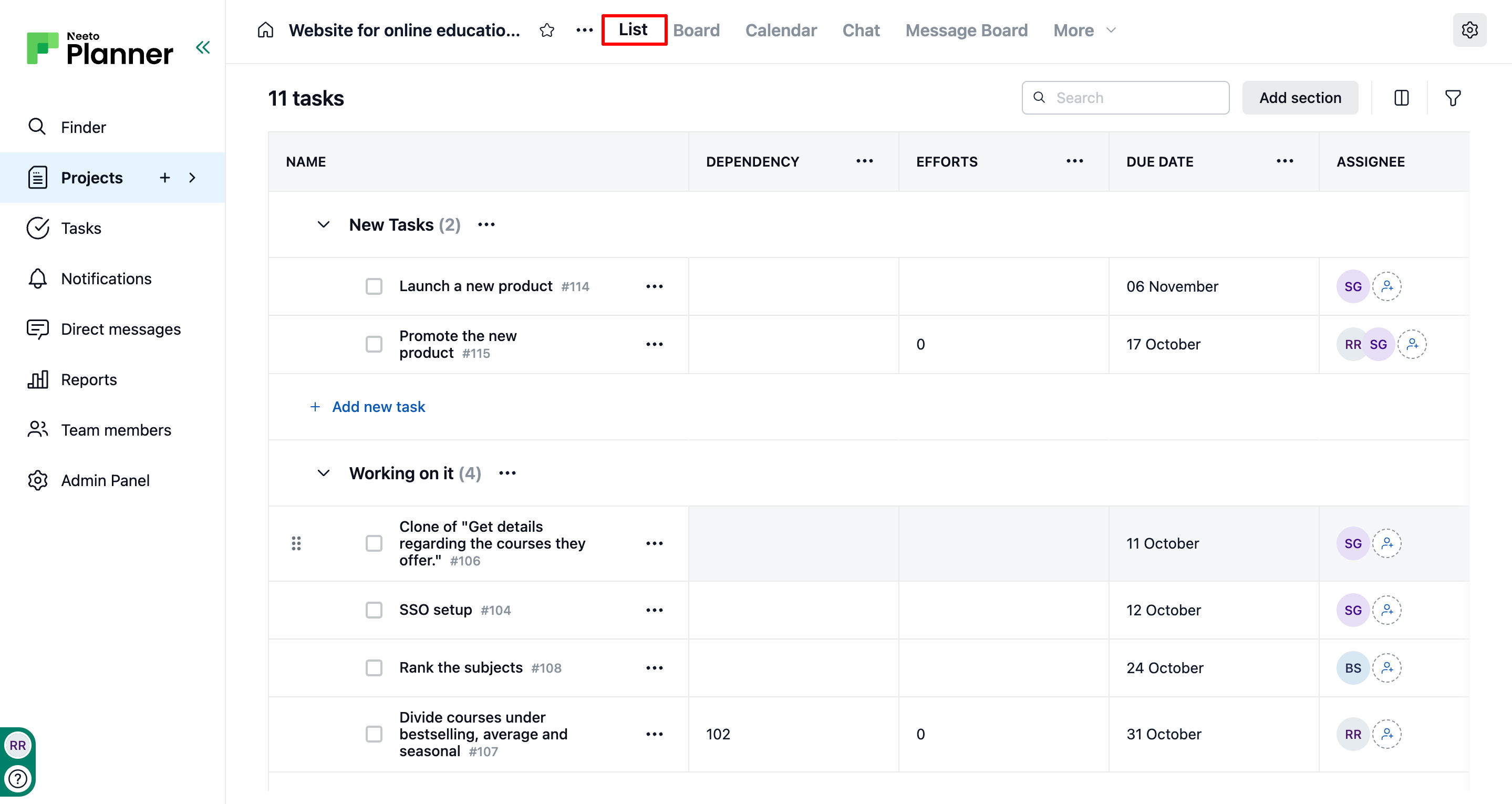
List view displays tasks in a straightforward, sortable list format showing details like task name, status, due date, and assignee. It is ideal for a clear, linear overview of all tasks and their attributes.
Loading tasks in large projects
In list view, tasks load progressively as you scroll. An initial set of pending tasks appears immediately for a fast page load, and additional tasks are fetched automatically as you scroll toward the bottom of each section; no action required on your part. Section headers always display accurate pending and completed task counts, even before all tasks in that section have scrolled into view.
Attachment count
When a task has files attached, it shows how many images, videos and other files it has, each with its own icon, so you can tell which tasks have files, and what kind, without opening them. Hover over an icon to see what it counts, for example "3 images". Files shared in the task's comments aren't counted, and tasks without attachments don't show these icons.